Introduction to BMW iDrive Systems
An Overview of iDrive and Its Evolution
Launched in 2001, BMW’s iDrive system introduced a fundamental shift in how drivers interacted with their vehicles. The early system replaced a complex array of buttons with a single rotary controller, giving a cleaner dashboard design and enabling drivers to access many vehicle functions from one central point. Over the years, iDrive has advanced from that simple controller to a digital ecosystem featuring touchscreens, gesture controls, sophisticated voice commands, and AI-powered personal assistants, such as the BMW Intelligent Personal Assistant.
Each generation has further integrated technology, from the introduction of the head-up display in 2003 to internet connectivity and digital services like ConnectedDrive. The latest iterations now offer curved displays and interface designs that prioritise both ease of use and an immersive driving experience.
If you’re looking for a BMW specialist in Worthing who truly understands the complexities of systems like iDrive, VANOS, and Steptronic gearboxes, Stedmans Garage offers main-dealer diagnostics and specialist repair solutions, without the dealership price tag.
The Role of iDrive in the BMW Experience
iDrive serves as the hub for all communications, entertainment, navigation, and vehicle settings in modern BMWs. It allows users to control media, manage phone calls, and access car data without distraction. As cars have become more complex, iDrive’s central role has grown, offering intuitive access to features and adapting to driver preferences.
Common Owner Challenges
Despite its innovation, iDrive can face problems. Owners report system freezes, slow response times, and black screens. Bluetooth connectivity, software update issues, and controller malfunctions are also frequent complaints. Some problems may arise due to low battery voltage or software glitches, highlighting the need for proper maintenance and timely troubleshooting.
Understanding iDrive System Components
Key Hardware Elements
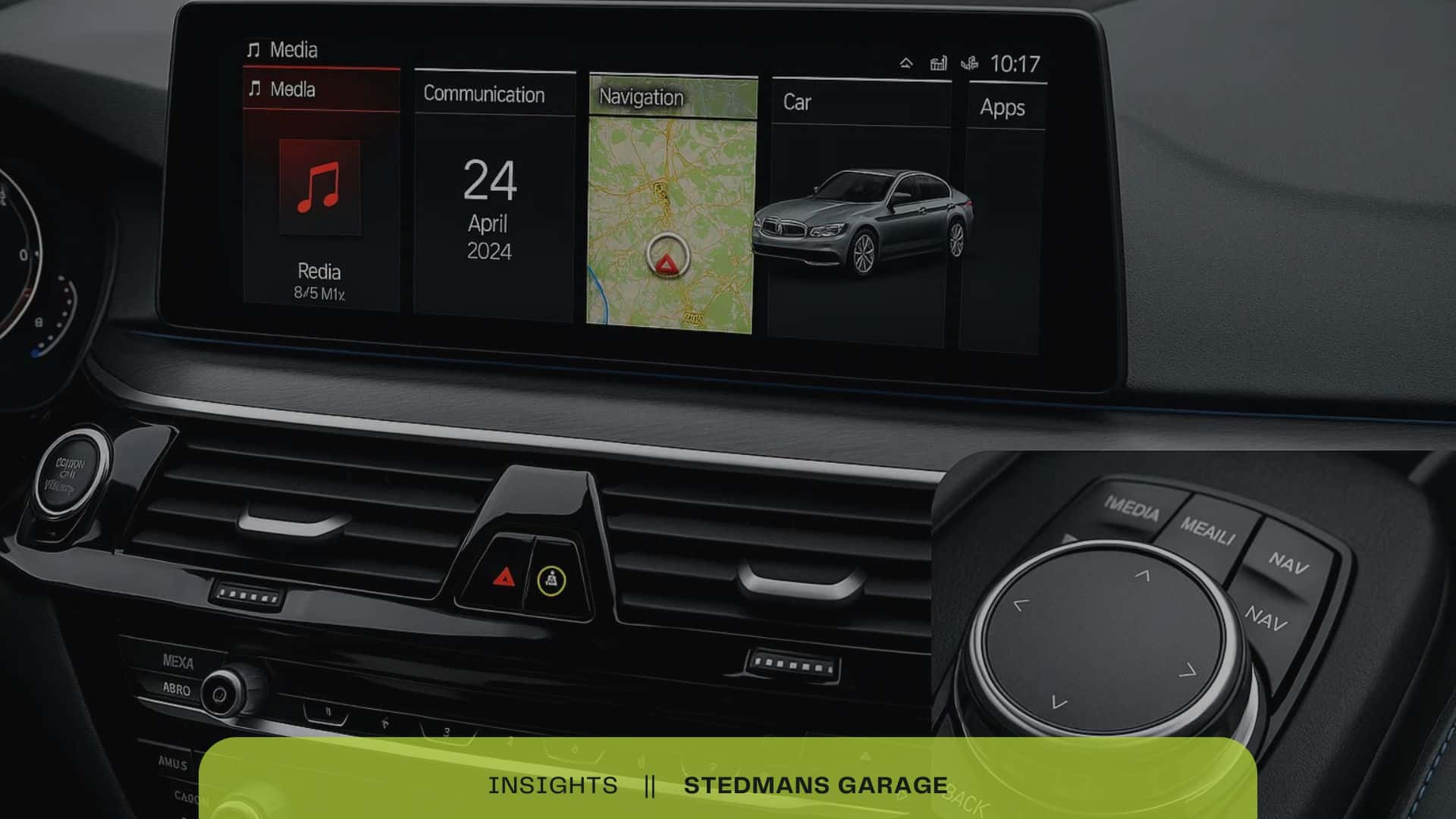
The iDrive system is made up of several main hardware components. The control knob, typically located on the centre console, acts as the user’s main point of physical interaction. Rotating or pressing the knob allows navigation through menus and selection of various functions. The display screen, which is often positioned atop the dashboard, provides visual feedback for all actions. Size and clarity have improved with each iDrive generation, supporting touch and gesture controls in recent models. The processor is the system’s computing heart. It manages data flow, interprets user inputs, and ensures smooth interactions between software and hardware.
Software Architecture
The iDrive software is built on a dedicated operating system. This architecture supports multitasking, such as running navigation and music apps at the same time. Its interface design prioritises user-friendliness. Clear menus, icons, and logical pathways help users find what they need quickly. Updates to the software deliver new features and security improvements, making regular updates important for performance.
System Integration
Each hardware part and software layer works together within the wider BMW ecosystem. The iDrive system connects with the vehicle’s communication bus, linking entertainment, navigation, climate control, and even some safety features. This integration allows users to adjust car settings, access smartphone features, and control media all from a single hub, helping to deliver a seamless driving experience.
Common Software Issues and Solutions
System Freezes, Crashes, and Slow Performance
iDrive users sometimes find the system freezing during normal use, experiencing delayed responses, or even crashing unexpectedly. These performance issues are often caused by overloaded memory, incomplete shutdowns, or background processes hanging. To address this, first attempt a soft reset, typically done by holding the iDrive volume button for around 30 seconds until the system restarts. Ensure the vehicle’s battery is healthy, as power fluctuations may also contribute to these problems. Regularly shutting down the car fully, allowing the system to power cycle, can help clear temporary glitches.
Bluetooth Connectivity and Pairing Problems
Another frequent challenge is unreliable Bluetooth connections or difficulty pairing new devices. This is usually due to outdated software, incorrect device settings, or memory limits on the number of paired devices. Resolve this by deleting unused devices from the iDrive Bluetooth menu and ensuring both the in-car system and your external device have Bluetooth turned on and are discoverable. If issues continue, deleting all pairings and starting fresh can often restore connectivity.
Software Update Failures
Updates are key to keeping iDrive functioning smoothly, but installations can fail due to poor USB formatting, corrupted files, or a weak power supply. Double-check that updates are compatible with your vehicle’s iDrive version, and always use a high-quality, FAT32-formatted USB stick when updating. Keep the engine running during the update to prevent power interruptions.
Hardware Troubleshooting Guide
Diagnosing Display Screen Malfunctions
iDrive display screens may show symptoms like flickering, pixelation, or going completely blank. Pixelation issues often stem from faulty connectors or display panel ageing. If the screen flickers or fails to power on, start by checking all cable connections behind the head unit. Loose or corroded connections can interrupt the video signal. If the screen remains non-functional after securing cables, the display module may require replacement.
Controller Knob Responsiveness and Damage
The controller knob is vital for navigating the iDrive menus. Lack of response can be caused by dirt accumulation or minor impact damage. First, gently clean around the knob to remove debris that could hinder movement. If the knob does not click or rotate smoothly, physical components inside may be worn or broken. In such cases, removal and inspection are necessary—look for broken plastic tabs or signs of internal wear. Replacement parts are often available for common iDrive controllers.
Heating and Cooling-Related Failures
Heating and cooling issues can impact iDrive performance. Excessive heat can cause intermittent slowdowns or unexpected shutdowns, while extreme cold may slow the screen’s response time. If the system overheats, inspect the vehicle’s internal climate control and ensure air vents around the dashboard are clear. Persistent issues after normalisation of temperature could point to underlying hardware wear, especially in older units.
iDrive Version-Specific Problems
Key Differences Across Generations
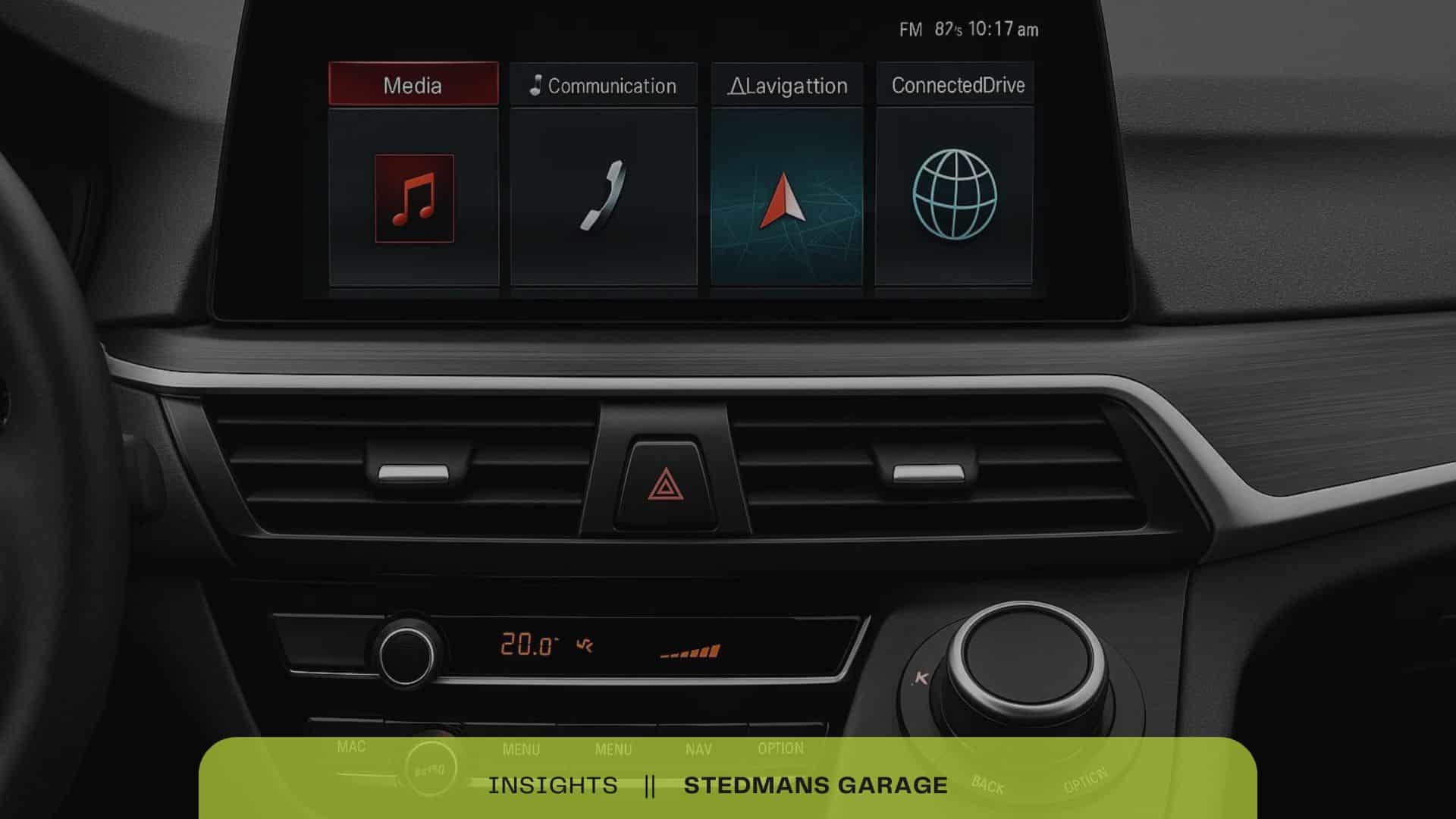
BMW’s iDrive system has undergone significant evolution since its introduction. Early generations, such as CCC and CIC, provided basic navigation and media controls. The NBT and later NBT-EVO systems offered refined graphics and improved menu layouts, while iDrive 7 brought a more modern interface with five main menu icons. With iDrive 8, BMW shifted to a curved display, an Android-based platform, enhanced voice recognition, and 5G connectivity. Not all BMW models upgrade to the latest system; for example, the X3 and Z4 remain on iDrive 7, while newer 3 Series, 5 Series, and 7 Series use iDrive 8.
Version-Specific Known Issues
Each generation has unique weaknesses. The CCC system is prone to slow startups and frequent crashes. CIC users may encounter navigation glitches and outdated map compatibility. NBT generations may develop screen flickering or Bluetooth instability. iDrive 7 can experience issues with wireless CarPlay dropouts and update failures. Early adopters of iDrive 8 report occasional system bugs, unresponsive interfaces, and CarPlay disconnects.
DIY Diagnostics and Reset Procedures
Performing iDrive Resets
If your BMW iDrive system is unresponsive or sluggish, a soft reset can often resolve minor glitches. While the car is safely parked and in “radio-ready” mode, press and hold the power button and the volume control button on the audio unit simultaneously for at least 30 seconds. The iDrive display will turn off and restart, restoring most functions without erasing personal settings. For deeper issues, a hard reset may help. In some cases, continuing to hold the volume button for up to 70 seconds forces a full system reboot, which can clear persistent software errors.
Deciding Between DIY and Professional Help
DIY resets and basic error checks are practical for resolving many common issues like freezes or minor communication errors. However, if problems persist after a reset, or if diagnostics reveal complex error codes, professional intervention is advisable. This is especially true for repeated crashes, major display issues, or errors affecting vehicle safety systems.
Professional Repair Options
Choosing the Right Repair Provider
When iDrive issues persist after self-diagnosis and resets, professional intervention becomes necessary. BMW dealerships and independent specialists are the two primary options for advanced repairs.
Dealership service centres offer factory-trained technicians and genuine parts. Their expertise covers the latest iDrive updates and complex integration within the BMW ecosystem. This can ensure correct fault diagnosis and proper repair, particularly for newer vehicles or unique software concerns. However, dealer repairs can be costly and may sometimes involve longer wait times for scheduling.
Independent BMW specialists are another option. These garages often have experience with specific generations of the iDrive system and can deliver quality repairs at competitive prices. They may use original equipment manufacturer (OEM) components or quality aftermarket parts. Many owners find that specialists provide a more personalised approach and quicker turnaround for common issues such as controller knob failures or display malfunctions.
Preventative Maintenance and Best Practices
Regular Software Updates
Frequent software updates are crucial for maintaining iDrive performance. These updates can deliver new features, fix known bugs, and improve system stability. Updating via BMW’s over-the-air service is straightforward; access “My Car”, then “Settings”, followed by “General Settings” and “Remote Software Upgrade” from the iDrive menu. Updates can often be performed while inside the car or using the BMW app for added convenience. Ensuring your software is current not only boosts functionality but helps prevent issues like slow response or connectivity failures.
Protecting Hardware from Environmental Damage
iDrive components, such as the control knob and display, are sensitive to moisture, heat, and dust. Park your BMW in shaded or covered areas whenever possible to reduce sun exposure and cabin overheating. Avoid using excessive cleaning liquids or abrasive cloths on the display screen. Small, regular efforts, like keeping drink spills away from controls, make a significant impact on preventing long-term hardware faults.
Backup and Restore Options
Preserving iDrive settings is vital, especially before major updates or repairs. BMW iDrive provides options to save personalised profiles, including climate, audio, and navigation preferences. In the event of a system crash or hardware replacement, these settings can be restored from saved profiles. For broader data backup concerns, follow BMW’s process for downloading settings and, if available, use compatible third-party backup applications.
Conclusion
Recap of Key Troubleshooting Approaches
Effective iDrive maintenance combines regular software updates, hardware inspection, and proper use of diagnostic features. Owners should perform soft resets for temporary software glitches by holding the volume knob, and check battery health and fuses when persistent issues arise. Software issues like slow response or Bluetooth problems often resolve with updates or by resetting Bluetooth devices. If the system reboots frequently or freezes, checking wiring or power connections is recommended.